
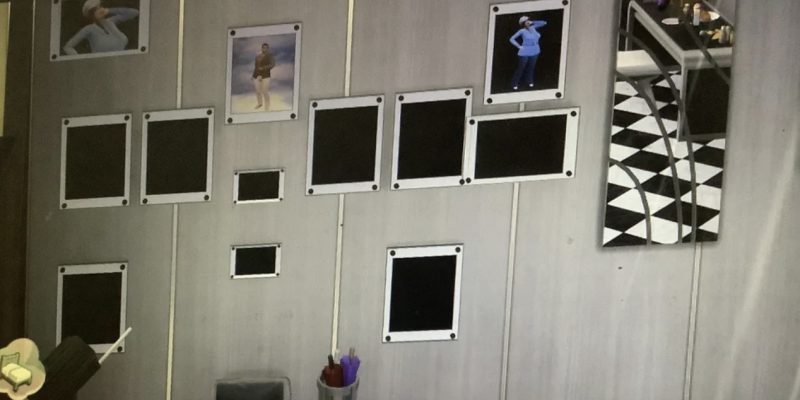
A Fix to the Black Photos
We’ve all been plagued by the black photos. It’s a non stop battle to keep our photos safe. But thankfully, a wonderful Reddit user efsamo has made a detailed step-by-step to help those plagued by the bug.
After another one of my save files was ruined by the black photos bug, I started messing around with Sims 4 Studio to check if I could manually recover them somehow. After some tries, here is a step by step guide on how to do it:
- First, check your save file number in game and create a backup of your ruined save file from the saves folder just in case of corruption.
- Verify that you have a backup version of your save file from before the bug affected it. The game creates security save files from your last saves. Check the saves folder. These are named Slot_[save number].save.ver1, ver2, ver3, etc.
- Open the latest version you had before the bug occurred using Sims 4 Studio. You can download it from here: https://sims4studio.com/
- Once the file is loaded, sort the file list by type and search for those called “Save Game Custom Texture”. This is where you will find all the photo images your save file has. Select them all using Shift + click.
- Click the green “Batch Export” button at the bottom and save them in a folder of your choice. It will download a PNG for each photo.
- Now open your bugged save file with Sims 4 Studio the same way you did before, and click the blue “Batch Import” button at the bottom. Select all the files you downloaded and let the program process them. It might show an error message, but it works fine despite this. I think this happens because not all your photos are bugged and the program tries to overwrite them too and fails.
- Save and close Sims 4 Studio, then open your game and load the save file you just modified. Et voilà, your photos are back in their frames. I have not tried it, but I guess this should also work with white canvases, as the game works with them in the same way.
After fixing my save, I did some tests to check whether this was a permanent solution, and it is. I exited and loaded the game several times using “save” and “save and exit” dialogs, saved from a non home lot, and added new photos… Every time, the photos were there.
I will keep the PNG files saved separately on my computer and update them regularly from my main save, just in case I need to recover them again and to skip some steps next time.
I hope this helps you!!!
How helpful! An absolute life saver, even as several comments state. It’s terrible to have such an awful bug but great that our community can come together to help each other. And one commenter, SirStollenwyrm, gave even more advice in the comments:
By the way, if you are moving, be sure to move any and all pictures/paintings into a Sims inventory. For some reason, the household inventory rendered mine blank during the moving process, but not the ones in my Sims pockets!
Forgot to add: This bug can also happen by leaving a lot right as a painting is finished. However, I believe that it is not a full blank state, as the painting quality and painter name is still visible. When it is blank, you can only scrap or copy it. Reloading reverted it to normal, for some reason.
So if you’re facing this bug and had no hope, we hope that these two very helpful players have shone some light on your game! Dag dag!
News Image Source: Reddit
News Source: Reddit
