

Many people who play The Sims 4 know what it’s like to start the game excited to play, but then lose interest after a few minutes. If there isn’t a clear goal or story, it’s easy for playtime to halt.
A lot of expert gamers say that keeping track of what happens in your game can help you fix this problem. A smart method to stay connected with your Sims is to write down their lives and plans. It also makes it a lot easier to get back into a save file after you’ve been away for a while.
A recent post in the r/Sims4 community shows a simple technique to do precisely that with Notion, and it’s surprisingly easy for newbies to use.
This helps me stay connected to my Sims 💛
byu/YellowLlamaCo inSims4
Why Some Simmers Keep a Record of Their Games
Tracking gameplay might seem unusual at first, but a lot of gamers claim it makes their saves more exciting.
When you write down notes, you can perform the following:
-
Before you start playing, think about what will happen next in the story.
-
Make a note of important things that happen in each session.
-
Write down your family’s traditions or your hopes for the following generation.
-
It’s easy to remember what you did the last time you played.
This can mean a lot for players who have large saves or extended legacies. It’s easier to look things up when they’re all written down instead of trying to remember a bunch of different storylines.
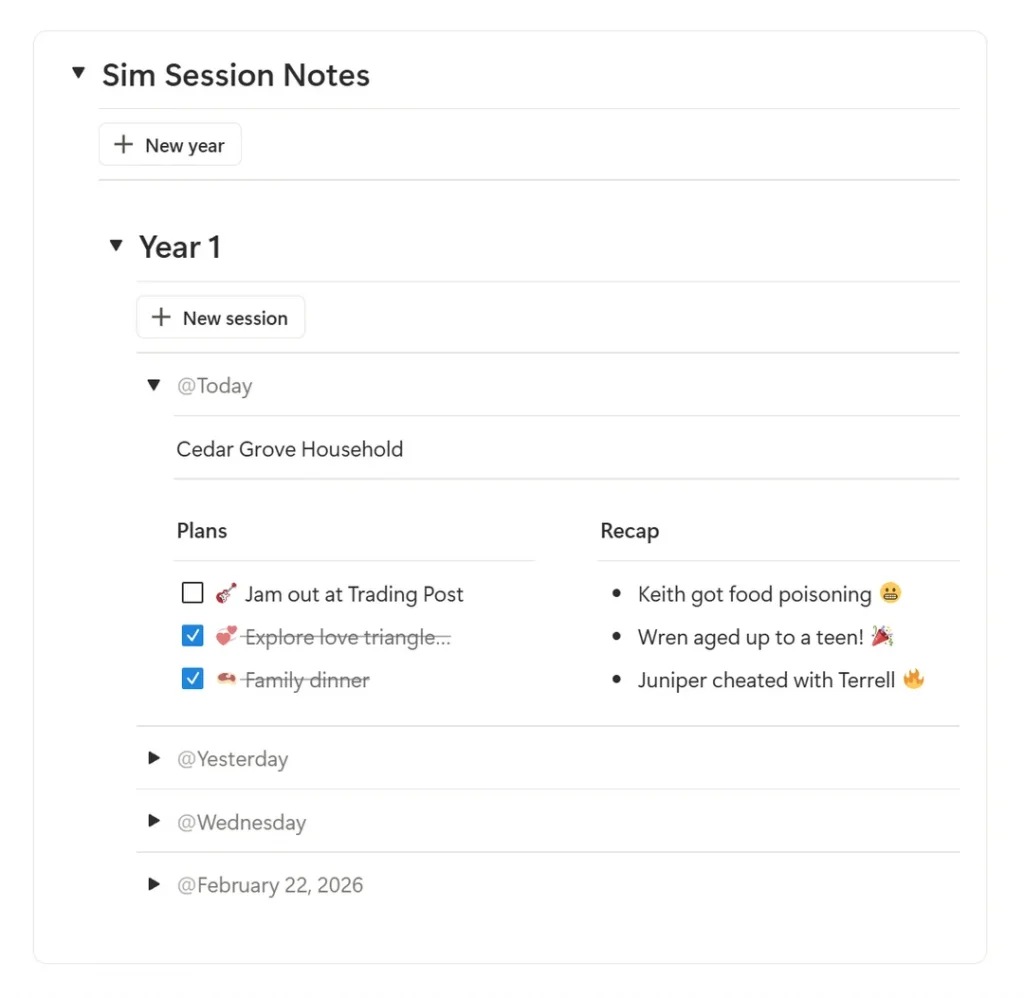
Example of a Notion Sim Session Notes tracker organizing gameplay by year and session date with plans and recap notes.
Notion Can Be Scary: The Problem
Notion is a great tool for keeping track of your projects and notes, but it can be tricky to use at first.
When new users open a new page, they might not know where to start because it uses a block-based approach that lets you change a lot of things.
The player who posted on Reddit had a simple solution: use Notion’s button block to automatically write notes for each play session.
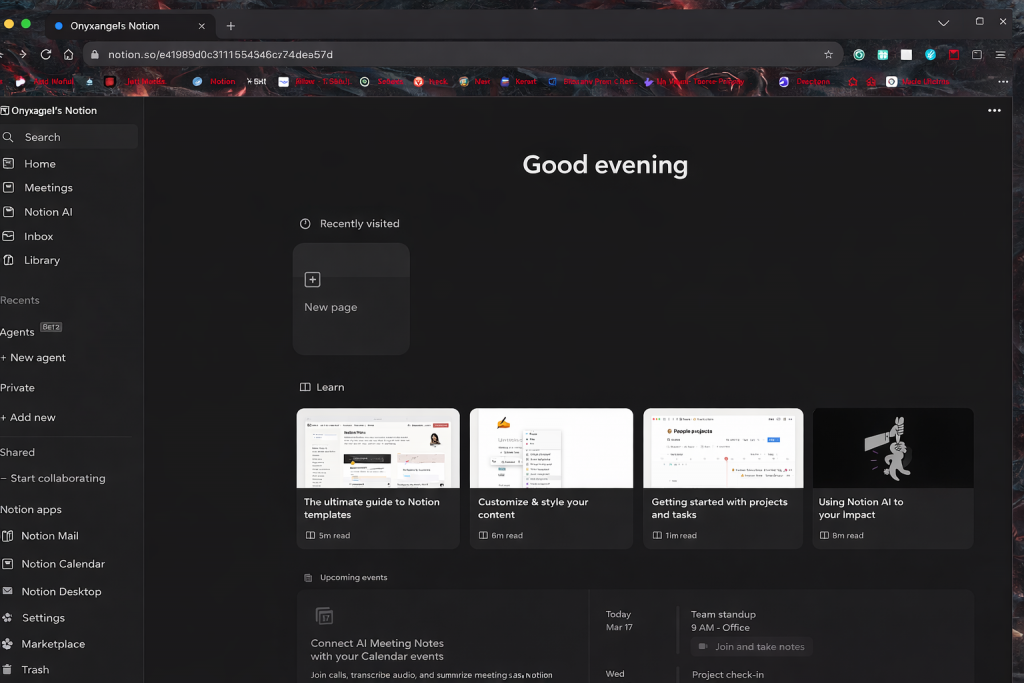
Example of a Notion dashboard used to organize Sims gameplay notes, sessions, and planning.
The Button Trick That Helps You Take Notes
The button block can produce a ready-made template with only one click, so you don’t have to write new notes every time you play.
A series of blocks are added to the page right away when you hit the button. These blocks are:
-
A divider
-
A toggle part with the date on it
-
Two columns for writing down plans and notes
This means that players can start writing straight away without having to set up their layout each time.
Another useful feature is that the notes are automatically sorted by the year of the Sim and the date of play. This makes it simple to keep things in order and out of sight when you don’t need them.
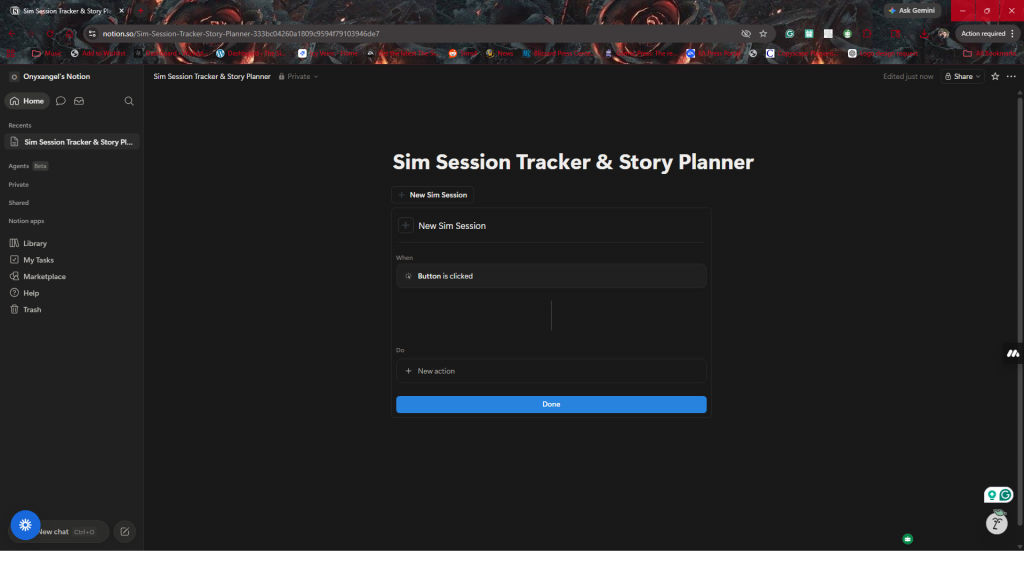
Setting up a Notion button block to quickly create new Sim session notes while playing.
How to Set It Up
The post suggests that getting things ready is easy.
First, make the blocks that will show up when you press the button. In this scenario, the setup had:
-
A separator
-
A toggle block with a title that says “date”
-
Two columns for getting ready and a summary of the session
Then, choose the Insert Blocks action from the button block. The prepared blocks will show up when you press the button.
The creator also modified the title of the toggle to a dynamic date block. This lets the system use the date when the note was made automatically.
To help them schedule more sessions, they made a second button that said “New Year.” This adds a new heading to the toggle called “Year #” and puts the session button inside it.
Last but not least, there is a major toggle called “Sim Session Notes” that holds everything.
This way, each new play session is neatly grouped by date and year.
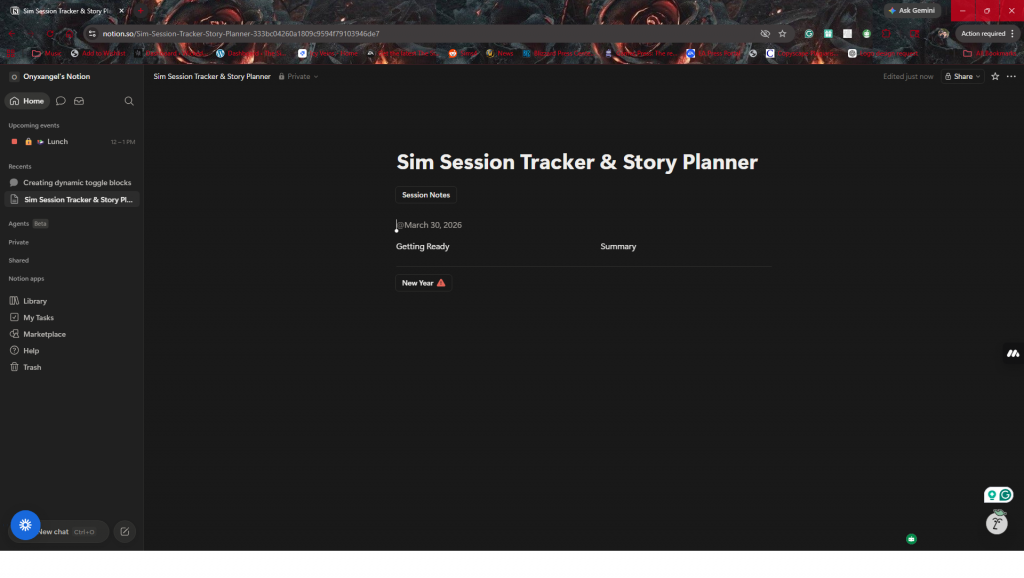
Example of a Sim session notes layout in Notion with sections for planning and gameplay recap.
Easy to Change
One of the best things about this strategy is that it can be changed.
Players can edit the button to build any blocks they like, like:
-
Notes for the story
-
House goals
-
News about relationships
-
Milestones for the legacy challenge
Buttons can accomplish more than just that. For example, gamers can use them to add to their system later by making database entries.
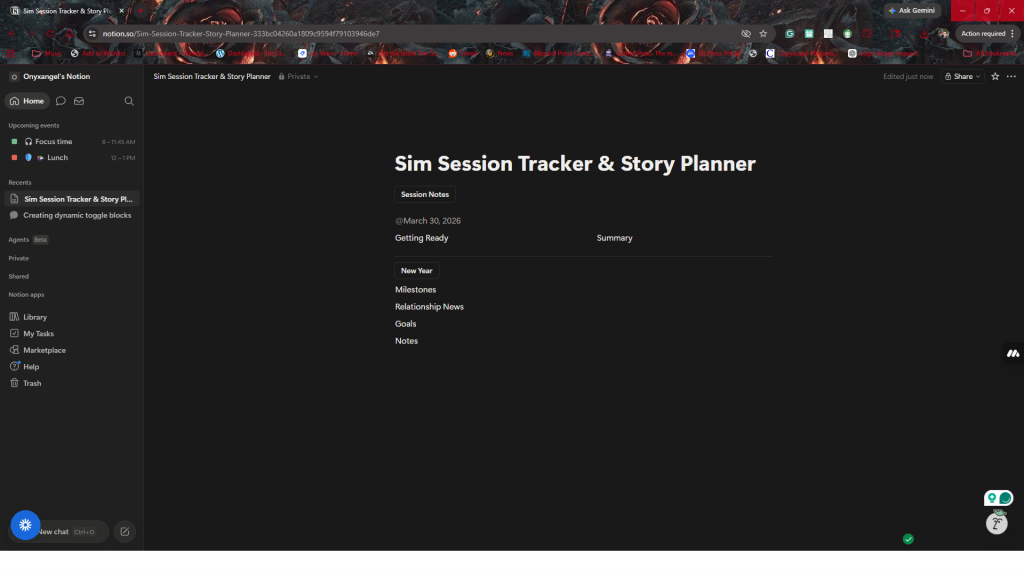
Example of a customizable Sim session template with sections for milestones, relationships, goals, and notes.
A Simple Way to Keep Your Save Going
The story is what makes the game fantastic for a lot of Simmers. Taking notes helps keep those stories alive and makes it easier to revisit them again and again.
Notion and other tools may seem hard to use at first, but small features like the button block can make things much easier.
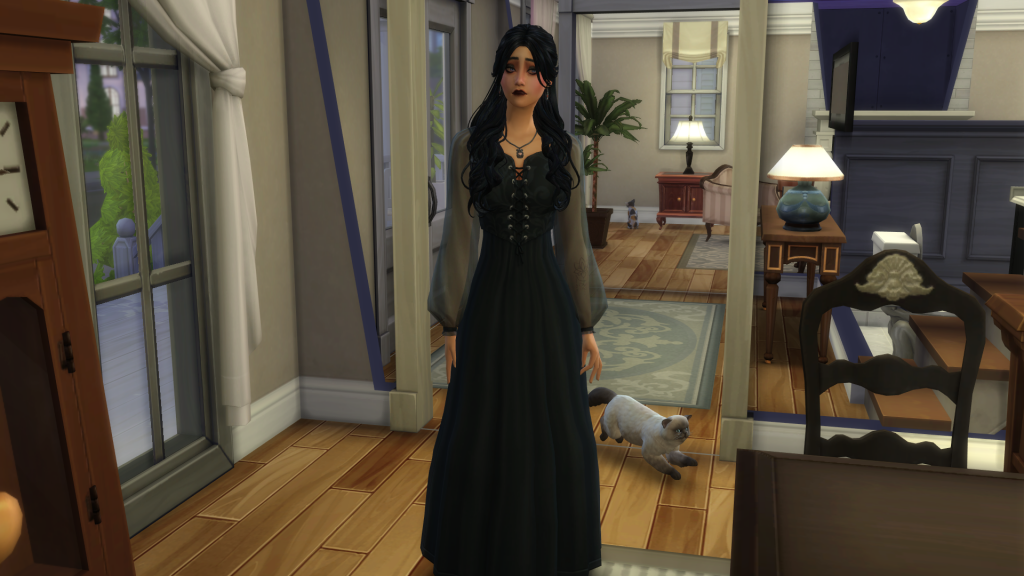
A gothic-inspired Sim character standing inside her home with her cat nearby.
A simple session tracker can be all you need to keep the story alive between play sessions if you prefer planning, legacy challenges, or long-term saves.
Sometimes, all you need to do to stay connected with the Sims you’ve developed is to organize them a little bit.
